
BookMapper01 - App Store
You'll be able to see results in few seconds.
Publisher Description
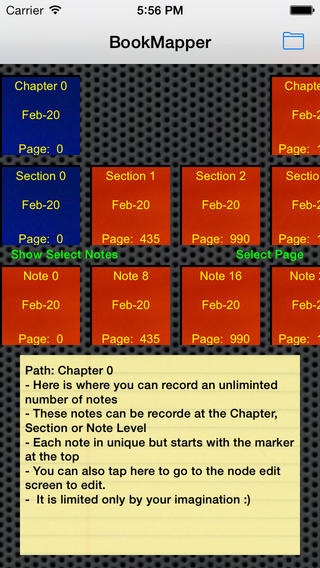
The purpose of Book Mapper is to provide a "mind mapping" type of applications for either creating a book or taking notes on a book under study. You can arrange these notes by chapter and/or section or present they by page order. The user is therefore enabled to construct an annotated map of there book to faciliate look-up and study.
Boxes (Notes):
- The boxes (or nodes) shown have are of three differnt types differing only by their kind. All nodes have Notes regardless of their type. You can therefore leave notes for any type of node (Chapter, Section or Note). The hierarchical arrangemet is Chapter->Section->Note. A Note Node box can be only at the bottom as a leaf node. The user can therefore build up Chapter and/or Section map of hte book and attach notes along the way.
- Options: One may elect to simply leave off section if they like. In this scenario, the hierarcyy will be Chapter->Note. In other words, one may elect to leave off section from a branch and just have chapter with notes. You can have a mix of chapters with notes but no section and chapters with sections and then notes.
Hierarchical Nodes View:
- This view presents a hierarchical view of the structure of the book. It provides first the chapter then section represented by the notes below. Each note is associated with either a chapter or a section. Chapters and sections themseves can also have notes.
- When you tap and hold on a box, you are presented a pop up selection list to add a box before or after at that level or one below or add a Note at that level. Notes added at a level will be shown at the bottom in the Linera Notes View.
- You can also move nodes. You tap and hold on a node and select the option to move. Next, select the new parent node (the node to which we want to now attach) and all descendent sections and notes will move along with it.
- When you double tap on a box, you get the box edit dialog. When you add a node, you get the box details view.
- Whenever you tap on a box no matter the hierarchy, the notes associated with that box or the descendents below will show up in the linear Note View on the bottom.
Linear Notes View:
- Provides a list of the notes by page number. When you tap on the note in the liner page view, the chapter and section associated with the note is also highlighted. You can also edit from here as you could from the hierarchical view. In All Notes
- The user can opt to present all notes (thereby ordered by page number) or filtered by the selected chapter and section from the hierarchical view. Select the lower text button to turn on and off this filter.
Note Text View:
- A text box appers in the middle of the screen with the notes created by the user for the selecte chapter, section or notes. The user can tap and edit the notes from here.
Utility Screen:
- This optional screen can be access by the upper right corner "folder" icon. From this screen, you can access this help screen as well as save and load either test data or your currently entered map. The map is also automatically saved when ever reducing the applicaiton to the background by pressing the home key.
Requires iOS 7.0 or later. Compatible with iPhone, iPad, and iPod touch.
About BookMapper
The company that develops BookMapper is Christos Kolonis. The latest version released by its developer is 01.
To install BookMapper on your iOS device, just click the green Continue To App button above to start the installation process. The app is listed on our website since 2014-03-06 and was downloaded 0 times. We have already checked if the download link is safe, however for your own protection we recommend that you scan the downloaded app with your antivirus. Your antivirus may detect the BookMapper as malware if the download link is broken.
How to install BookMapper on your iOS device:
- Click on the Continue To App button on our website. This will redirect you to the App Store.
- Once the BookMapper is shown in the iTunes listing of your iOS device, you can start its download and installation. Tap on the GET button to the right of the app to start downloading it.
- If you are not logged-in the iOS appstore app, you'll be prompted for your your Apple ID and/or password.
- After BookMapper is downloaded, you'll see an INSTALL button to the right. Tap on it to start the actual installation of the iOS app.
- Once installation is finished you can tap on the OPEN button to start it. Its icon will also be added to your device home screen.
Program Details
System requirements
Download information
Pricing
Version History
version 01
posted on 2014-03-06
Disclaimer
Official App Store Link
We do not host BookMapper on our servers. We did not scan it for viruses, adware, spyware or other type of malware. This app is hosted by Apple and passed their terms and conditions to be listed there. We recommend caution when installing it.
The App Store link for BookMapper is provided to you by apps112.com without any warranties, representations or guarantees of any kind, so access it at your own risk.
If you have questions regarding this particular app contact the publisher directly. For questions about the functionalities of apps112.com contact us.
